
Questo articolo non è ancora disponibile in italiano: stai leggendo la versione originale (inglese). La traduzione italiana è in preparazione.
Cet article n'est pas encore disponible en français : vous lisez la version originale (anglais). La traduction française est en préparation.
This article is not available in Español yet: you are reading the original version (English). A translation is on the way.
Archived article: written in 2017 and no longer updated. Some information, software or links may be out of date.
An App can be certified in Aptoide in the follow way:
- in Android Studio
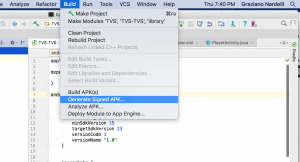
- create a new keystore
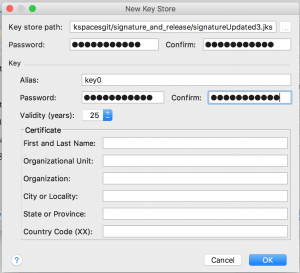
the file signatureUpdated3.jks is created in the path assigned and clicking on “OK” the release Apk is created in the default folder /build/outputs/apk - in Aptoide account, the certificate APP has to be added
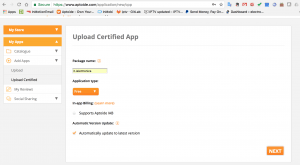
- Upload the certificate Apk created in android studio (in the folder /build/outputs/apk)
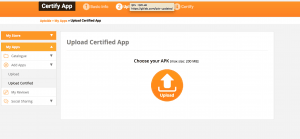
- finally the certificate has to be added in Aptoide
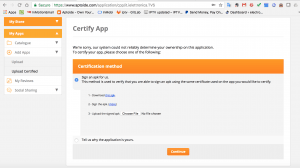
- dowload the apk generate after bullet 2.
- rename the download apk on Desktop (e.g. Unsigned.apk)
- download the apk-signer here:
https://shatter-box.com/knowledgebase/android-apk-signing-tool-apk-signer/
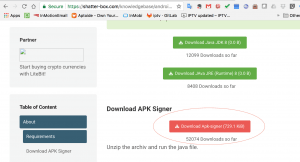
- execute the apk-signed with the follow command line:
java -jar apk-signer-1.8.5.jar
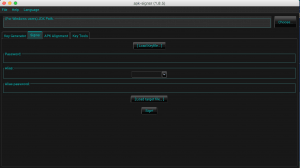
- load the jks file
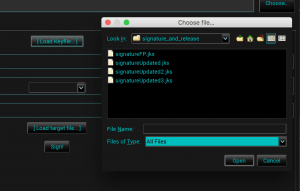
- Add the same password used in bullet 2.
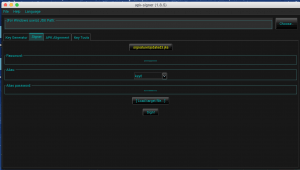
- finally Add the apk file created in bullet ii. (e.g. Unsigned.apk) and click the button Sign!
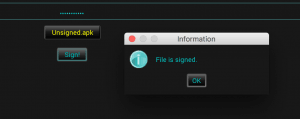
- un file called “SIGNED_…apk” is created on Desktop. This file has to be loaded here on point 3. (the same form used in the bullet 5.)
- The APP is now certified. However Aptoide need time (with Antivirus and tools) to certify internally the updated APP
Artículos relacionados






Subscribe
Login
0 comentarios
Oldest